

The Blink me app offers various features that can be optionally activated by system administrators. If the features are not activated, they are not displayed in the Blink me app. These include employee card, stickers, news, external links and e-learning. We introduce these features here.
Employee card
If you need to identify yourself at a site or in front of a customer, you can use the digital employee card directly in the Blink me app – provided your company has activated the feature.
You'll find the ID card icon on the home screen at the top right. Tapping it opens the employee card.
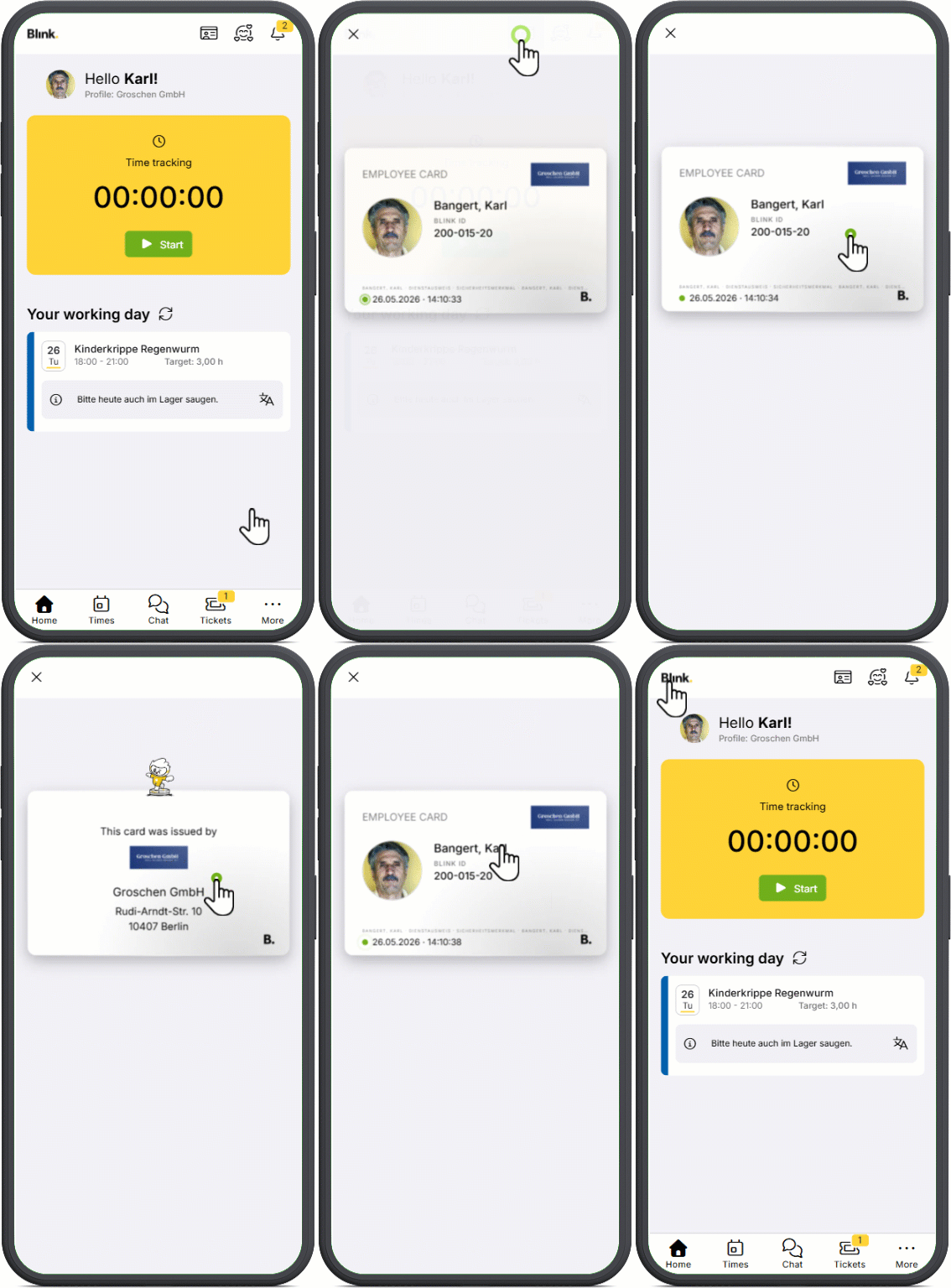
The front shows your profile picture, your name, your Blink ID and, if applicable, your length of service – as well as a live clock and an animated icon. Tapping again flips the card: the back shows your company name and address – and Blinky, riding his vacuum cleaner across the card.
The card also works offline and displays the last saved values.
How the card looks is decided by your company: it can add its own logo and a background colour so the card appears in the company's branding. Without these settings, the card is displayed in white and without a logo.
Stickers
With the Blink me app, your team leader can now easily give you digital praise or a thank you - in the form of stickers.
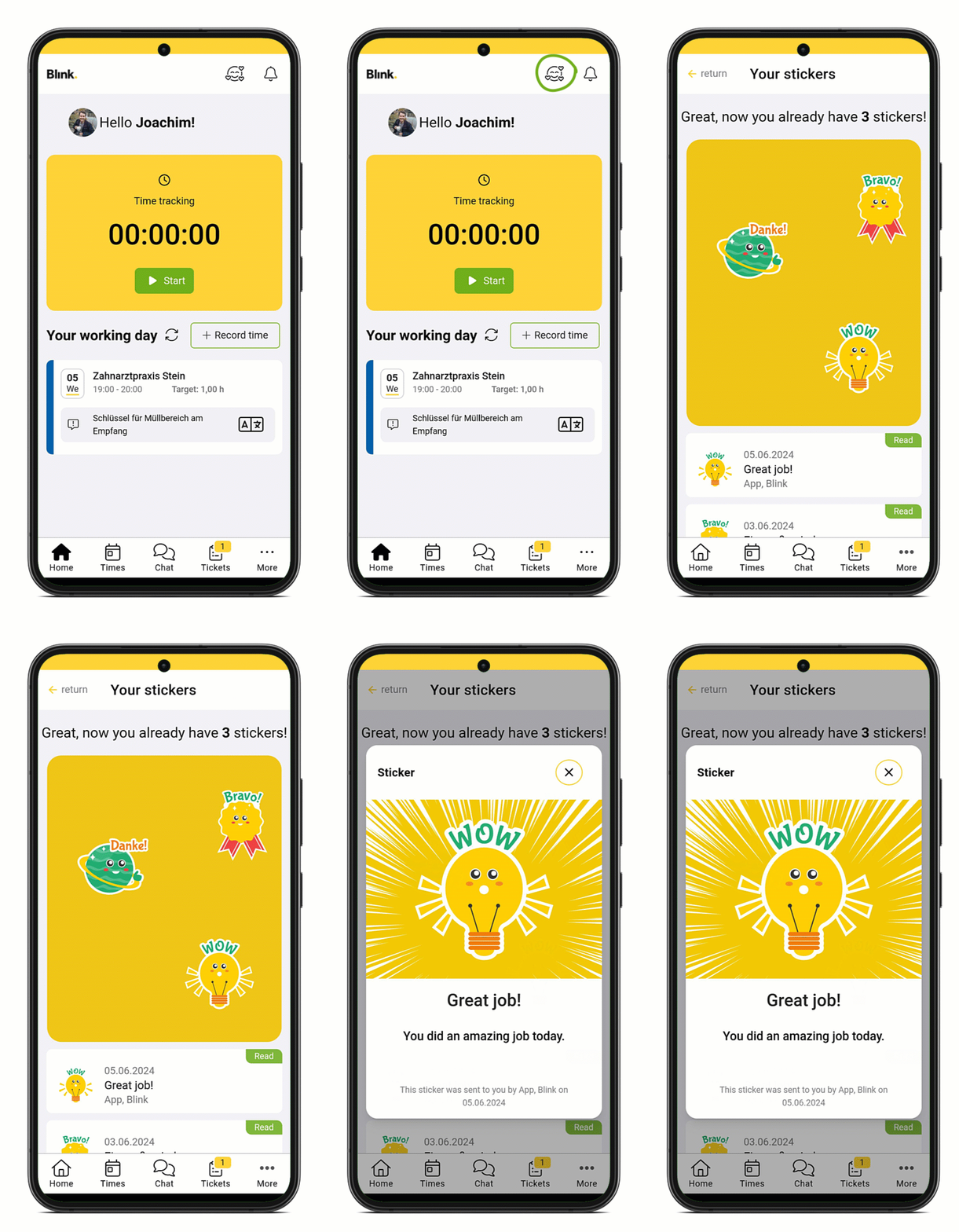
When your team lead sends you a sticker, it is displayed as a pop-up in the app. All stickers received in the past can be read again in the sticker collection. The collection is located at the top right of the home screen behind the smiley icon. A small number on the icon indicates a new sticker that has not yet been read.
News
Your company can send you news such as announcements, notices or current information directly to the app via Blink. New and unread messages are displayed with a counter on the notification center (bell icon) at the top right of the home screen.
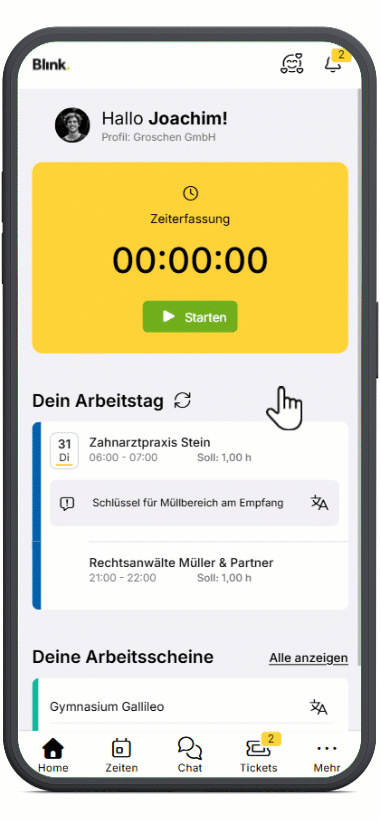
You can recognise news there by the newspaper icon, and ticket notifications by the bell. Once read, the counter disappears, but the messages remain accessible in the notification center.
Please note: news messages are not translated automatically, even if you have set a different app language.
External links
System administrators can define so-called external links. This allows websites such as discount portals or intranet sites to be integrated into Blink. Links are displayed in the Blink me app under ‘More’. The icon and title are defined by the system administrator.
.png?cb=fa6fecba66d6aebe7782a5fcd31a666f)
If you click on a link, a notification window opens. If you confirm with ‘Next’, the website stored opens in a new window in the smartphone's default browser.
Important: The link is provided by the company. When you confirm with ‘Next’, you leave the Blink system.
E-Learning
You can integrate e-learning programmes directly into the Blink me app. This allows your company to easily provide you with training content, e.g. via the provider mytutorial.
When activated, you will find the e-learning section under ‘More’.
There you will see an overview of the courses selected for you, divided into the ‘To do’ and ‘Done’ tabs (each with the number of courses). In the respective lists, you will see a preview image, the course title, brief description of course topics, the due date or date of course completion and a colour-coded status (blue: not yet completed, but not yet overdue; green: completed; red: not yet completed, but already overdue).
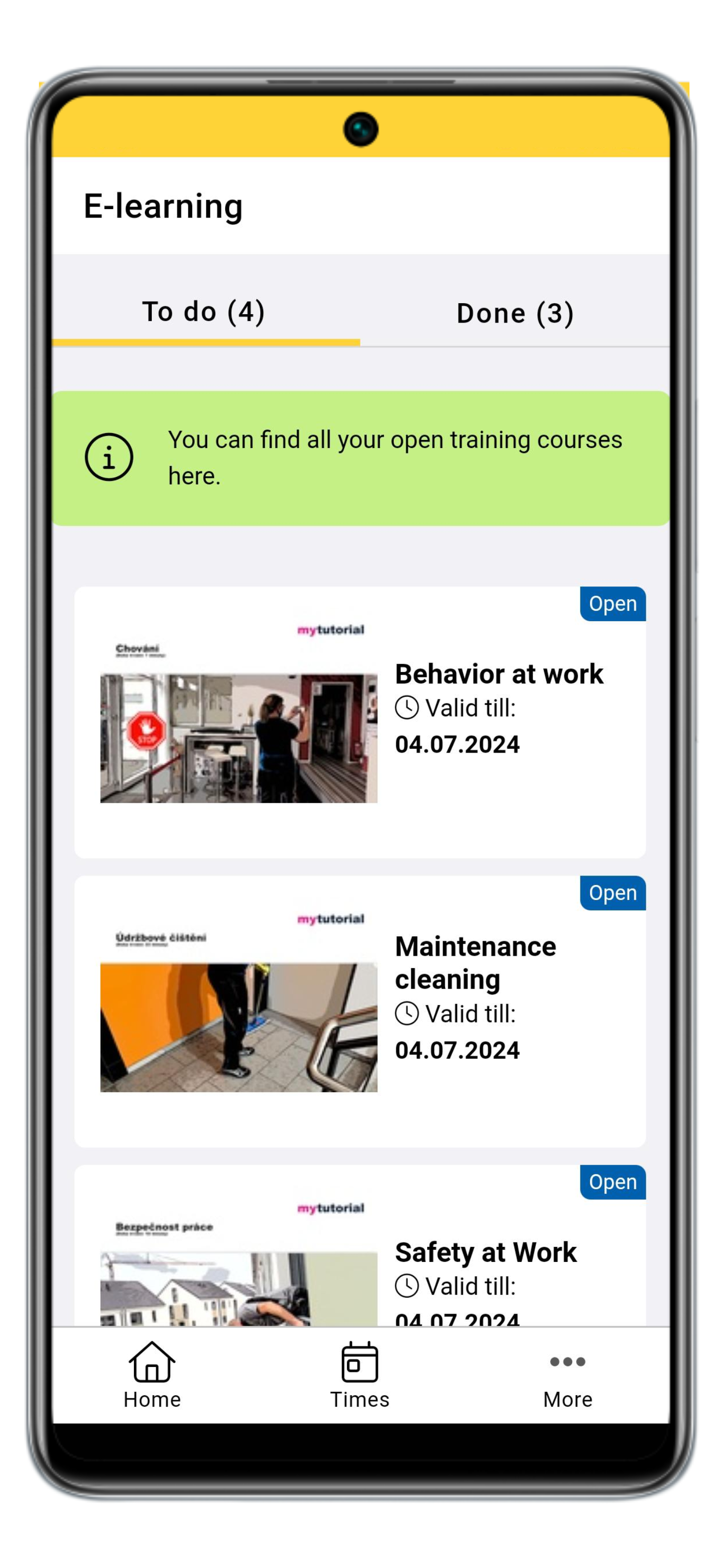
To open a course, simply click on it. The course will then open in your smartphone's default browser without you having to log in. Once you have successfully completed the course, you can either go to the course overview of the training tool in the browser and take another course or close the browser and change back into the Blink me app.